
Stripe
Take one-time payments and monthly or yearly subscriptions through Stripe Checkout, with refunds and the customer portal.
Stripe is the provider with the most complete adapter. The buyer pays on Stripe's hosted Checkout page; the price comes from your plan, so you create no products or prices in Stripe.
What it supports
| Capability | Supported | Notes |
|---|---|---|
| One-time payments | Yes | A plan billed once or for a lifetime |
| Subscriptions | Yes | A plan that renews every month or every year |
| Refunds from the console | Yes | Full or partial, from /admin/orders |
| Customer portal | Yes | Buyers open it from /app/billing/portal |
| Currencies | The plan's currency | Sent to Stripe as it is saved on the plan |
A renewal is charged by Stripe. This adapter settles the first payment of a subscription; it does not process Stripe's invoice.* events, so a renewal does not create a new order or grant the plan's credits again.
Before you begin
You need
- A Stripe account. Use test mode until the whole flow works.
- The site deployed at a public HTTPS address. Stripe cannot deliver a webhook to
127.0.0.1. - An admin account with
config.readandconfig.write. - At least one active plan in
/admin/plans. See Manage pricing plans.
When you finish you have
- A secret key (
sk_test_…) and a webhook signing secret (whsec_…) saved in the admin console. - Stripe set as the active provider, with a test purchase settled as a paid order.
Set up Stripe
These steps happen in the Stripe Dashboard.
Open the test API keys
Open dashboard.stripe.com/test/apikeys. The /test/ address keeps you in test mode.
Test and live keys do not mix
A test key only works with a test webhook secret, and a live key with a live one. Finish the whole flow in test mode before you create anything in live mode.
Copy the secret key
Under Standard keys, click Reveal test key on the Secret key row and copy it. It starts with sk_test_.
Open the webhooks page
Open dashboard.stripe.com/test/workbench/webhooks and click Add destination.
Select the events
Select these three events, then continue:
| Event | What it does here |
|---|---|
checkout.session.completed | Marks the order paid and stores the subscription id |
checkout.session.async_payment_failed | Marks the order failed |
checkout.session.expired | Marks the order canceled |
These checkout events cover the order transitions in the table.
Enter the endpoint URL
Choose Webhook endpoint as the destination type and set the Endpoint URL to:
https://<your-domain>/api/billing/webhook/stripeClick Create destination.
Copy the signing secret
On the destination's page, reveal the Signing secret and copy it. It starts with whsec_.
One secret per destination
Each destination has its own signing secret. A secret copied from another destination, or from the Stripe CLI, does not verify these events.
Activate the customer portal (optional)
To let buyers manage cards and cancel, open dashboard.stripe.com/test/settings/billing/portal and click Activate test link. If you keep more than one portal configuration, copy the id of the one to use; it starts with bpc_.
Stripe's own guides: Receive Stripe events in your webhook endpoint and Activate the customer portal.
Fill in the admin form
Back in the Kernlift admin console.
Open Payment Config
Go to Settings → Payment Config (/admin/config/payment) and select the Stripe card.
Set the return addresses
In Checkout routes, set Success URL to where a buyer lands after paying, for example https://<your-domain>/app/billing, and Cancel URL to where a buyer lands otherwise, for example https://<your-domain>/pricing. Leave API base URL as it is; Stripe does not use it.
Paste the values from Stripe
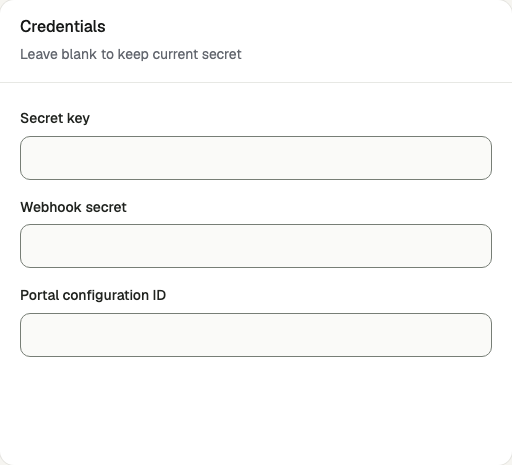
In Credentials, paste each value into its field:
| In Stripe | Field in the admin form |
|---|---|
Secret key (sk_test_…) | Secret key |
Signing secret (whsec_…) | Webhook secret |
Portal configuration id (bpc_…), optional | Portal configuration ID |
A secret field is never shown again after saving, and saving it empty keeps the stored value.
Make Stripe the active provider
Tick Set as active provider and click Save provider. The card shows Active, Ready and Webhook ready.
Verify
- Sign in as an ordinary user, open
/pricingand buy a plan. Expected: you are sent to a Stripe Checkout page. - Pay with the test card
4242 4242 4242 4242, any future expiry date and any CVC (see Stripe's test cards). Expected: you return to the Success URL. On the way back,/api/billing/callback/stripeasks Stripe whether the session is paid before the order is marked paid. - Open Security → Webhooks (
/admin/billing-webhooks). Expected: acheckout.session.completedevent from Stripe with a valid signature. - Open Commerce → Orders (
/admin/orders). Expected: the order is paid, the buyer sees the invoice on/app/billingand the plan's credits on/app/credits.
To test a refund, open the order and create a refund. See Manage orders, refunds and subscriptions.
Go live
- Open dashboard.stripe.com/apikeys (no
/test/in the address) and copy the live Secret key (sk_live_…). - Open dashboard.stripe.com/workbench/webhooks and add the destination again, with the same URL and events. Copy its new signing secret; a test-mode secret does not verify live events.
- Save both on
/admin/config/payment, and check that Success URL and Cancel URL point at the production domain. - Make one real purchase and refund it.
Troubleshooting
The webhook is listed with a failed signature
The saved Webhook secret is not the signing secret of this destination, or it comes from the other mode. Stripe events whose timestamp differs from the server's clock by more than 300 seconds are refused as well, so check the server time. A proxy that rewrites the request body also breaks the signature.
The order stays pending after a successful payment
Neither the return through /api/billing/callback/stripe nor the webhook reached the site. Check that the destination URL is the public address and that checkout.session.completed is selected, then resend the event from the Stripe Dashboard.
Checkout is rejected with plan_interval_mismatch
The plan bills as a subscription but its interval is not month or year, or it bills once but has a monthly or yearly interval. Save the plan again in /admin/plans; the form keeps the two in step.
A refund fails with "requires a PaymentIntent or Charge id"
The order has no Stripe payment behind it, which happens when the checkout was never completed. Only a paid order can be refunded.