
Creem
Accept payments with Creem.
- Checkout Hosted checkout
- Subscriptions Cancel and resume
- Portal Yes
- Refunds In the Creem dashboard only
Checkout compatibility
Creem’s documented checkout API requires product_id. The current adapter sends product_data and has no product-ID field. Treat checkout as unverified until the adapter sends a real Creem product ID and a sandbox order succeeds. Creem API
Before you begin
A public HTTPS site, an active plan on /admin/plans, and access to the merchant dashboard.
Expected result — a configured test store, verification secret and webhook endpoint.
Set up Creem
Choose the test store
Open Creem. Switch the store to test mode.
Create the API key
Create an API key under Developers.
Register the webhook
Register the public HTTPS endpoint ending in /api/billing/webhook/creem under Webhooks. Subscribe to checkout.completed and copy the signing secret.
Provider documentation · Creem's webhook guide
Configure the application
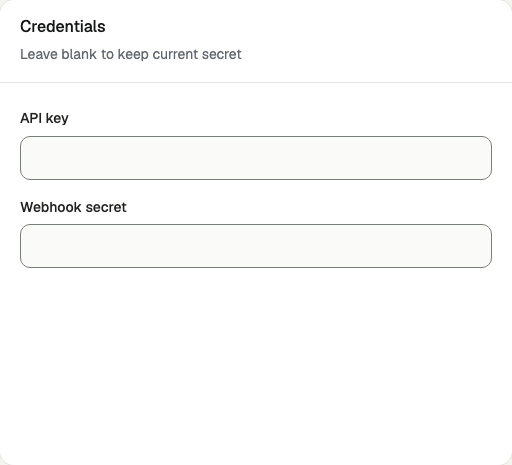
Open /admin/config/payment in the Kernlift admin console. Select Creem. Enter your public Success URL and Cancel URL, then set API base URL to https://test-api.creem.io.
| Value from provider | Admin field |
|---|---|
| API key | API key |
| Webhook secret | Webhook secret |
| Test API | API base URL |
Enable the provider and click Save provider.
Verify
Once the adapter supplies a sandbox product ID, verify the payment flow.
- Buy a plan on
/pricingas a sandbox buyer. - Check the signed event on
/admin/billing-webhooks. - Find the same order on
/admin/ordersand confirm it is paid.
Go live
Create live credentials and register the production webhook in the live account. Save its verification value with the matching credentials and https://api.creem.io.
Troubleshooting
Webhooks fail the signature check
Check that the secret belongs to this store’s webhook in the same mode as the API key.