
Google Analytics
Connect your website to Google Analytics.
Before you begin
An account with access to the provider and permission to edit the settings below in Kernlift.
Expected result — the provider’s tag on a public page.
Set up Google Analytics
Set up a web stream
Open Google Analytics. Create a GA4 property and a Web data stream. Copy its measurement ID.
Enable reporting
For reports, record the numeric property ID and enable the Analytics Data API.
Authorize report access
Obtain a read-only OAuth access token for an account with property access.
Provider documentation · GA4 Measurement ID
Configure the application
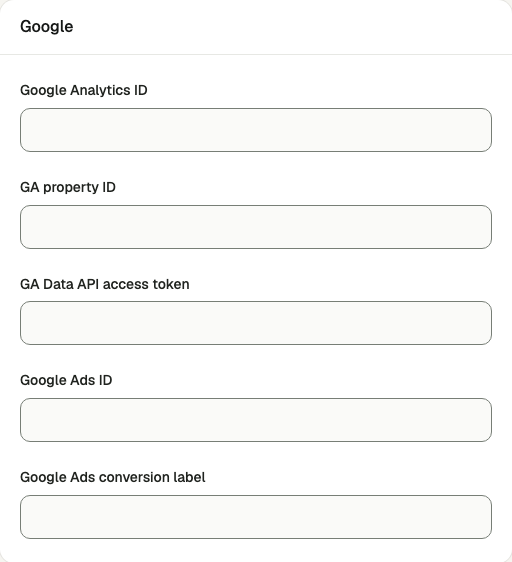
Open /admin/config/analytics in the Kernlift admin console.
| Value from provider | Admin field |
|---|---|
Google Analytics → Admin → Data streams → your web stream → Measurement ID (G-…). | Google Analytics ID |
| Google Analytics → Admin → Property details. Digits only. | GA property ID |
An OAuth access token with read access to the property, for example with the analytics.readonly scope. Tokens are short-lived, so paste a fresh one before pulling reports. | GA Data API access token |
Save the form.
Verify
- Open a public page in a private window with blockers disabled.
- Check for
googletagmanager.com/gtag/json the page.
Troubleshooting
No script appears on the page
The identifier is empty, the page was not reloaded after saving, or an ad blocker removed it. Check the Runtime checks panel, then reload with extensions off.