
SearXNG
Connect the agent service to SearXNG.
Before you begin
An account with access to the provider and permission to edit the settings below in Kernlift.
Expected result — a service connection the agent can use for a task.
Set up SearXNG
Deploy the search service
Open SearXNG. Deploy a SearXNG instance reachable from the agent.
Enable JSON responses
Enable json under search.formats in settings.yml and restart.
Check a search request
Confirm that a search request with format=json returns JSON.
Provider documentation · official container guide · Search API
Configure the application
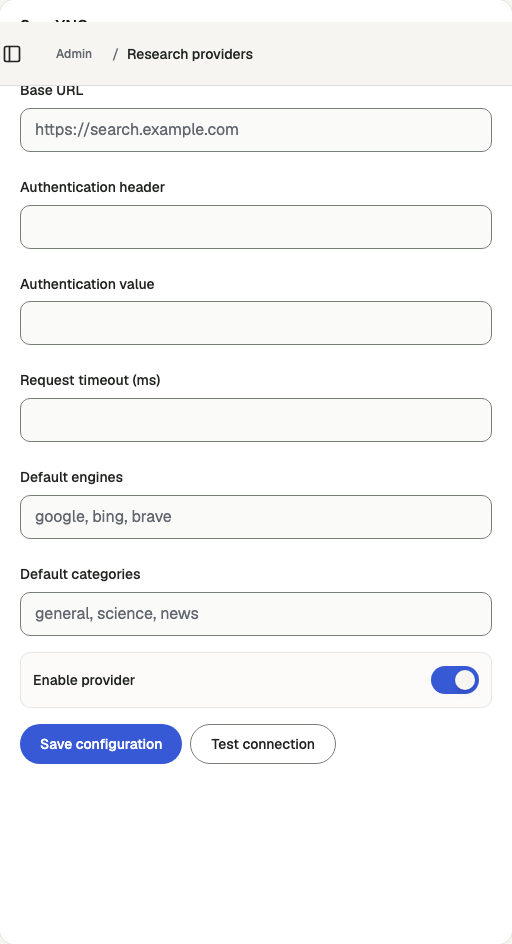
Open /admin/config/search in the Kernlift admin console.
| Value from provider | Admin field |
|---|---|
| Instance URL | Base URL |
Enable the service, enter the connection details and save.
Verify
- Use Test connection from the service panel.
- Run a search or extraction and inspect the returned content.
Troubleshooting
Connection failed
Test the configured URL from the agent service host. Match any proxy authorization header with the value saved in admin.