
Aliyun DirectMail
Send transactional email with Aliyun DirectMail.
Before you begin
An account with access to the provider and permission to edit the settings below in Kernlift.
Expected result — a test message in your inbox and its delivery log.
Set up Aliyun DirectMail
Verify the sending domain
Open Aliyun DirectMail. Choose your Direct Mail region and verify a sending domain.
Create the sender address
Create a triggered-email sender address in the same region.
Create the RAM AccessKey
Create an AccessKey for a dedicated RAM identity with Direct Mail permission.
Provider documentation · API sending setup · sender-address setup
Configure the application
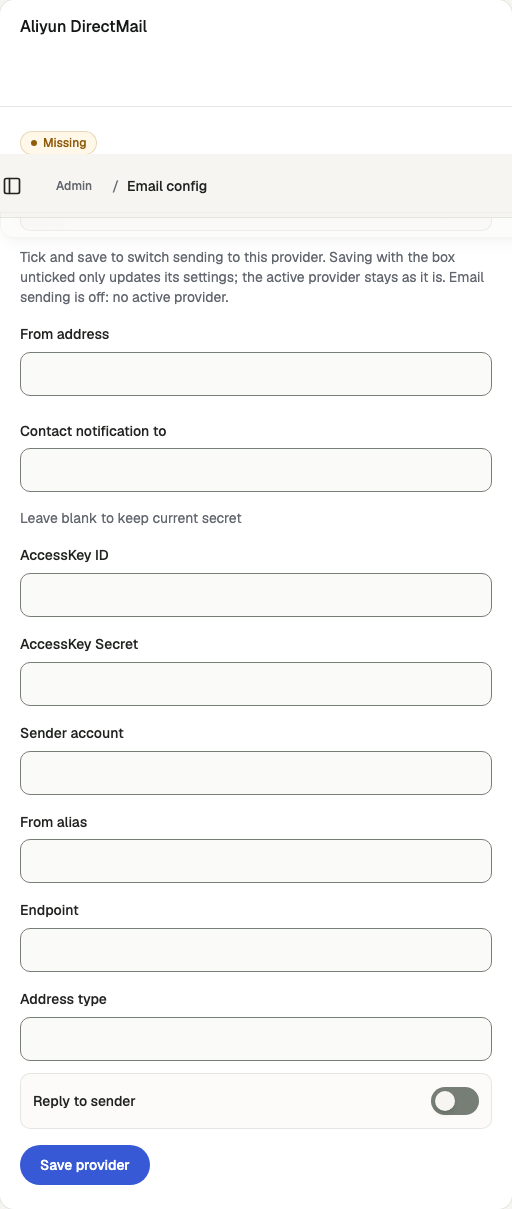
Open /admin/config/email in the Kernlift admin console.
| Value from provider | Admin field |
|---|---|
| Aliyun RAM console, for a user with DirectMail permission. | AccessKey ID, AccessKey Secret |
| The sender address under your verified domain in the DirectMail console. | Sender account |
Optional: display name; endpoint (default https://dm.aliyuncs.com, change for a regional one); address type (default 1); tick to route replies to the sender account. | From alias, Endpoint, Address type, Reply to sender |
Tick Set as active email provider and click Save provider.
Verify
- On
/admin/email/test, choose a template and send it to your own address. - Confirm delivery in your inbox and a
sententry on/admin/email/deliveries.
Troubleshooting
Deliveries show not_configured
The active provider is missing a credential, or email is off. Resend needs an API key; Cloudflare needs account ID and API token; Aliyun needs AccessKey ID, secret and sender account.