
Google Gemini
Route text generation to Google Gemini.
Before you begin
An account with access to the provider and permission to edit the settings below in Kernlift.
Expected result — a text model you can route to chat.
Set up Google Gemini
Create an AI Studio key
Open Google Gemini. Select or import the Cloud project and create an API key.
Confirm model access
Confirm quota and copy a Gemini model ID available in the project.
Provider documentation · Google AI Studio API Keys
Configure the application
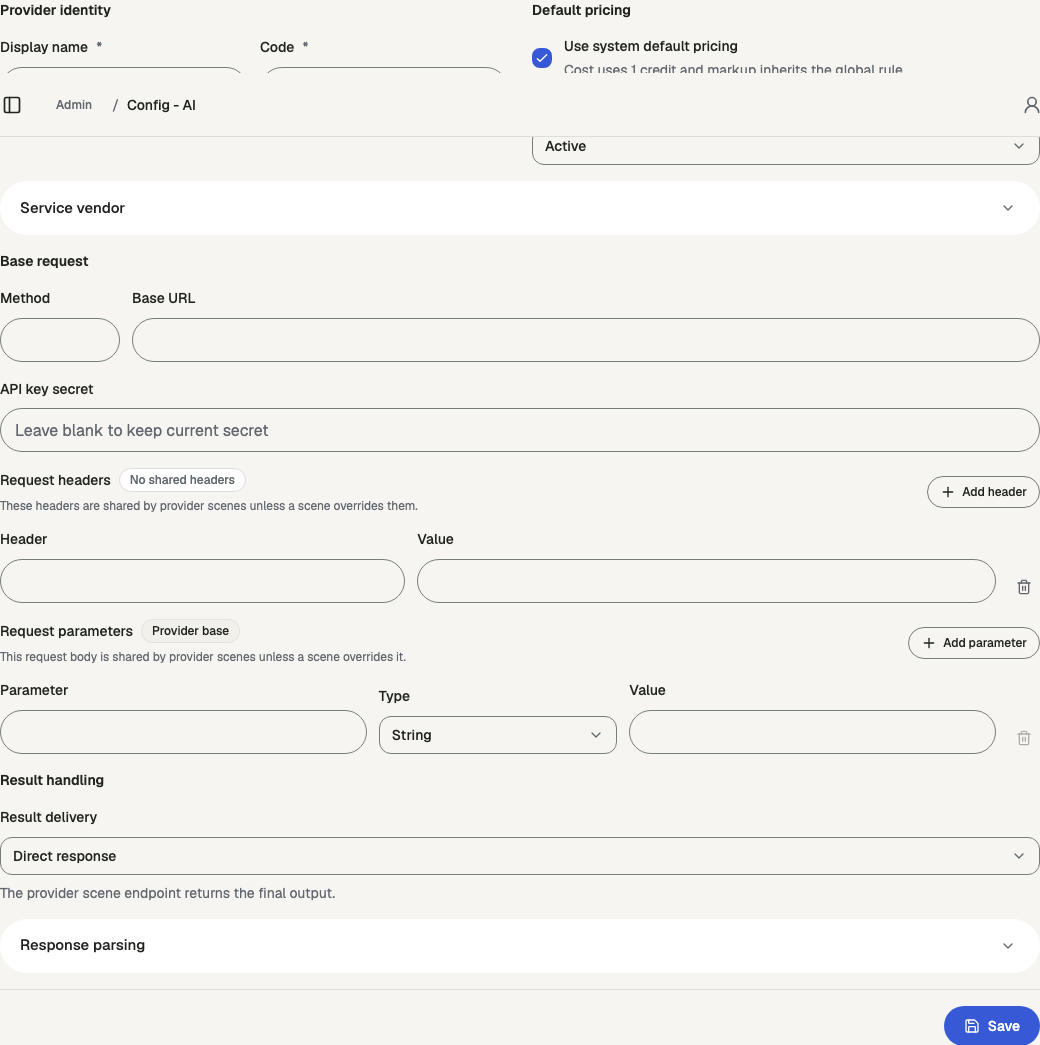
Open /admin/config/ai in the Kernlift admin console.
| Value from provider | Admin field |
|---|---|
| API key | API key secret |
| Service endpoint | Base URL |
| Model ID | Model ID |
Add a provider scene for text, select Gemini protocol, enter the model ID, configure its price, and save. Assign the ready model to the chat scene.
Verify
- Inspect Routing readiness for the model. Resolve any missing setting.
- Send a message through the assigned chat scene and confirm the model responds.
Troubleshooting
Chat fails with "Provider scene chat protocol is not configured"
The provider scene routed from the chat scene has no protocol or model ID. Set both on the provider scene.