
MinIO
Store uploaded files with MinIO.
Before you begin
An account with access to the provider and permission to edit the settings below in Kernlift.
Expected result — an uploaded file you can download again.
Set up MinIO
Create the bucket
Open MinIO. Open your MinIO Console and create a bucket.
Create application keys
Issue application credentials under Access Keys with object access to that bucket.
Record the S3 endpoint
Record the S3 API endpoint reachable from Kernlift and the signing region.
Provider documentation · MinIO identity management
Configure the application
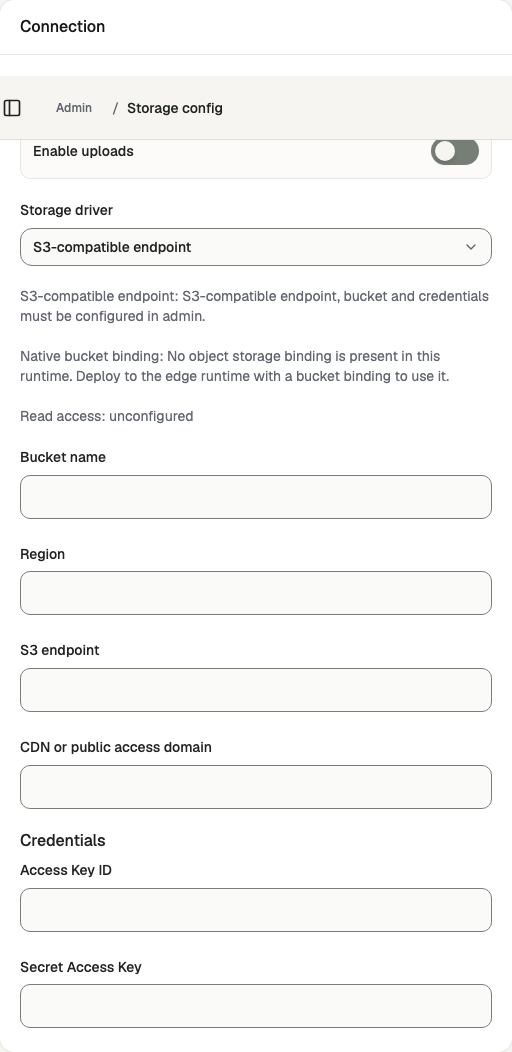
Open /admin/config/storage in the Kernlift admin console.
| Value from provider | Admin field |
|---|---|
| Bucket | Bucket name |
| API address | S3 endpoint |
| Signing region | Region |
| Access Key | Access Key ID |
| Secret Key | Secret Access Key |
Enable uploads and select the S3 driver. Use the S3 API address accessible to the server. Save the configuration.
Verify
- Upload a small allowed file at
/app/assets/upload. - Download it from
/app/assetsand check the content.
Troubleshooting
S3 upload fails with "Storage upload failed (403)"
The error shows the provider's own code and message. Check the access key, secret and bucket name, and that Region matches what the endpoint expects for signing.