
Let buyers sign in with Google.
Before you begin
Copy the full URL ending in /api/auth/callback/google from Callback URLs on /admin/config/auth. It must use the origin where users sign in.
Expected result — the provider’s sign-in button on your site.
Set up Google
Configure the consent screen
Open Google. Configure the consent screen. Add test users if the app is in testing.
Create the web client
Create a Web application client.
Register the redirect URI
Register the Google URL from the Callback URLs panel. Copy the Client ID and secret.
Provider documentation · Google's web OAuth guide
Configure the application
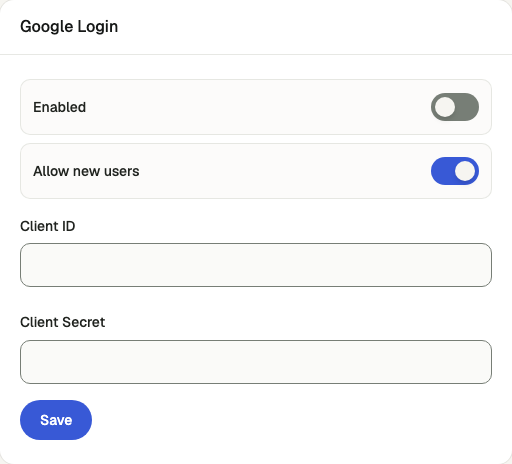
Open /admin/config/auth in the Kernlift admin console.
| Value from provider | Admin field |
|---|---|
| Client ID | Client ID |
| Client secret | Client Secret |
Enable this provider. To accept first-time users, enable Allow new users, then save.
Turn on Google One Tap (optional)
One Tap shows Google's "Continue as …" prompt on the sign-in and sign-up pages, so a visitor already signed in to Google signs in or signs up with one click. It reuses the Google client above.
- In the Google client, add your site origin, for example
https://<your-domain>, under Authorized JavaScript origins. One Tap is refused from an origin that is not listed. - On
/admin/config/auth, turn on Google One Tap in the Google panel and save. It takes effect only while Google sign-in is enabled and its client ID and secret are saved.
While it is on, Better Auth serves POST /api/auth/one-tap/callback, which verifies Google's ID token against your client ID; while it is off, that endpoint does not exist. A first-time user can sign up through One Tap only when Allow new users is on, and a banned user is still refused.
Verify
- In a private window open
/auth/sign-inand choose Google. - Complete consent and verify the browser returns to the signed-in workspace.
- With One Tap on, open
/auth/sign-inin a browser signed in to Google. The prompt appears; choosing your account signs you in and returns you to the page you were going to.
Troubleshooting
The One Tap prompt does not appear
Check that Google sign-in is enabled with its client ID and secret, that Google One Tap is on, and that the site origin is in Authorized JavaScript origins. Google also stops showing the prompt for a while after a visitor dismisses it.
The provider rejects the redirect
The callback URL registered with Google or GitHub does not match the one in the Callback URLs panel. Copy it again, including the scheme and domain.